Where can documents come from?
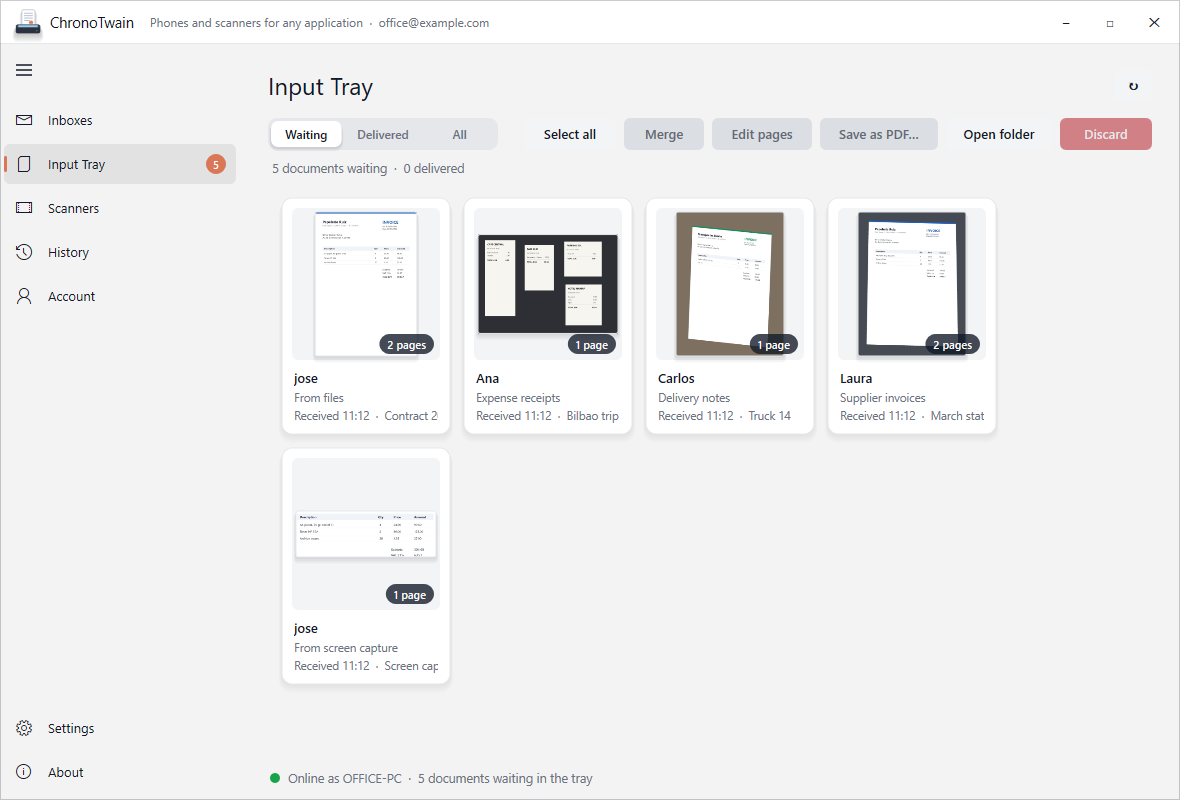
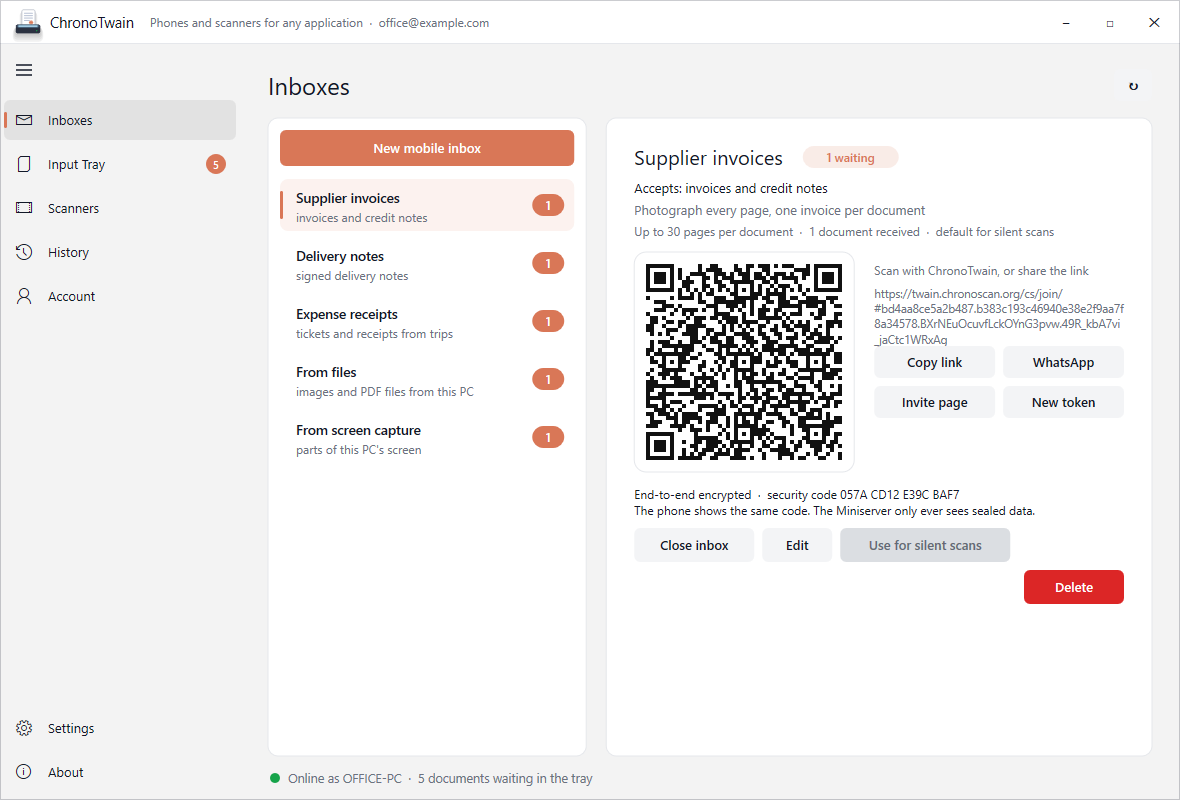
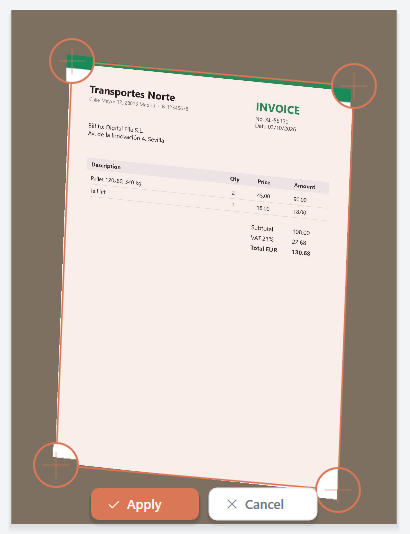
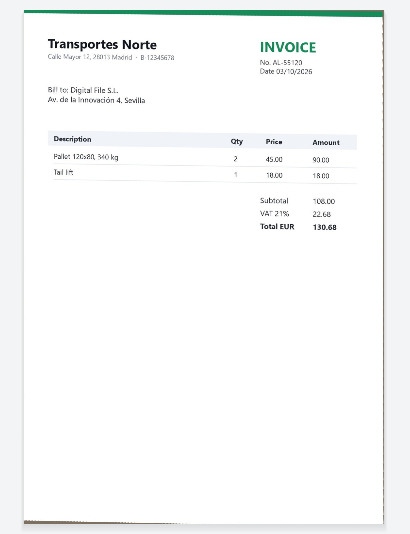
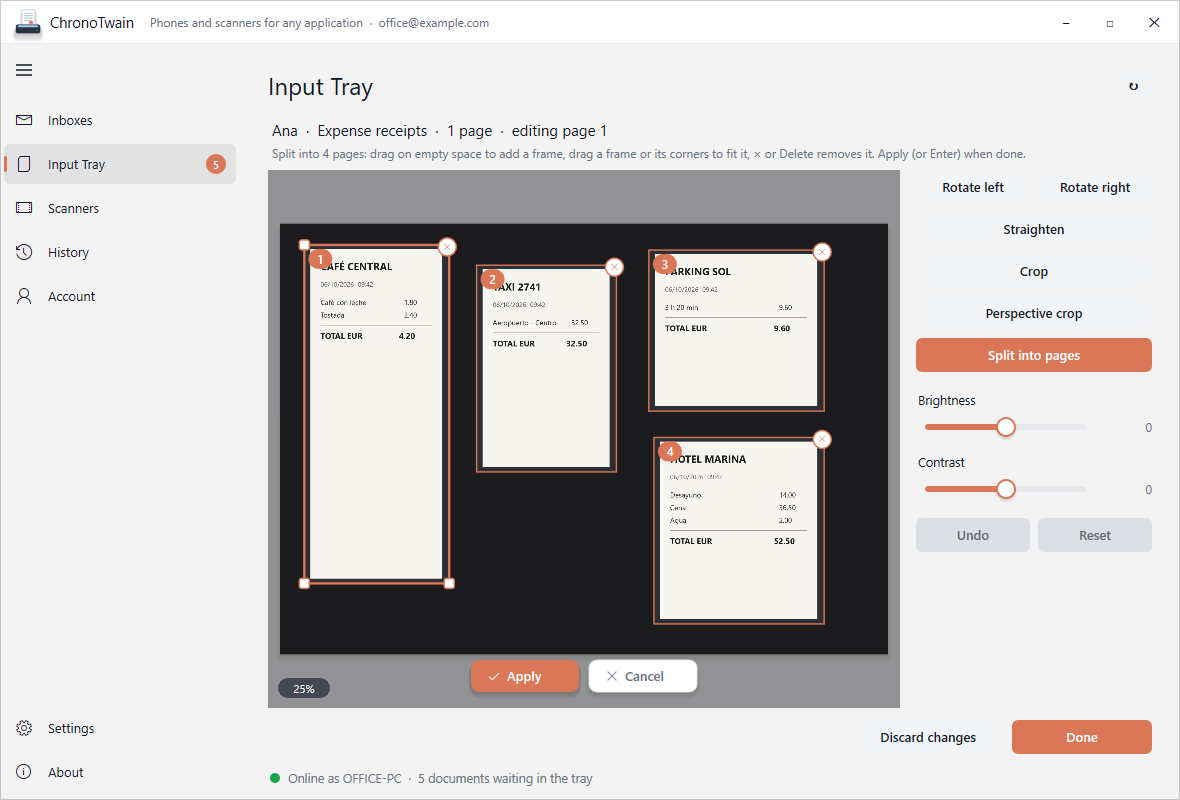
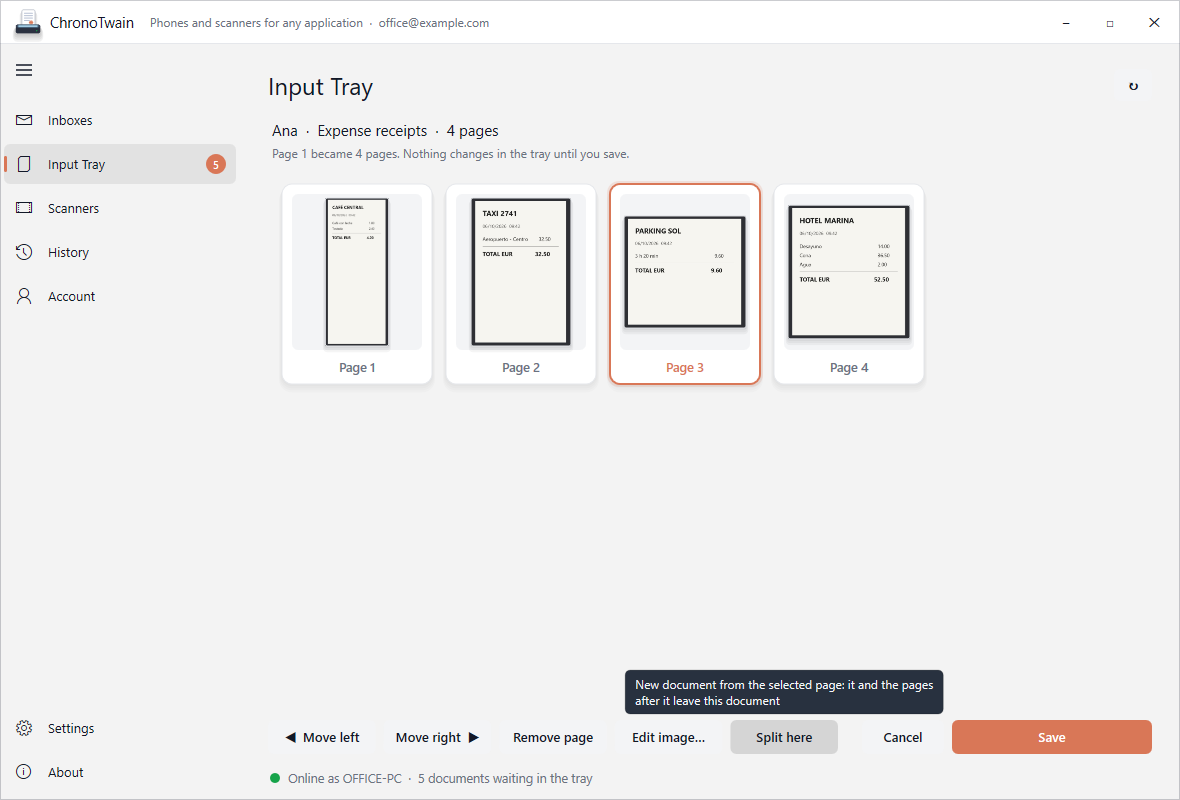
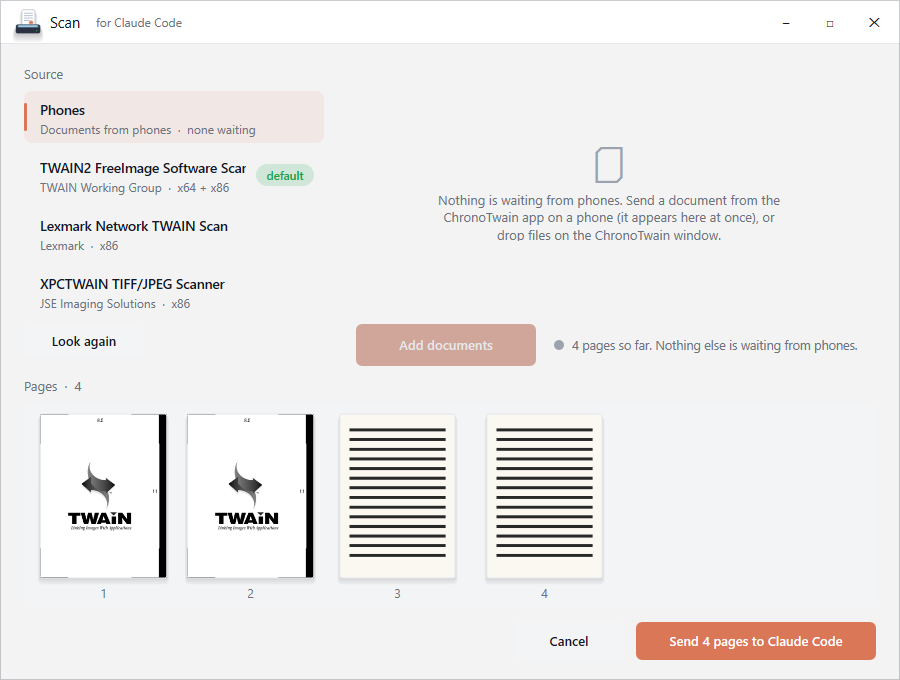
From the TWAIN scanners of the PC (64 and 32-bit drivers), from phones with ChronoLite Mobile (anywhere with a connection), from screen snips, and from image and PDF files. Documents from phones, snips and files wait in the Input Tray, where you can fix them before they go on.
How many phones can send to my inboxes?
As many as you like. Anyone who scans an inbox’s QR code or opens its invite link can send to it — there are no seats, device licences or sender accounts. Only the documents that arrive count, against the host’s package. You can close an inbox or renew its QR whenever you want to stop old invites.
What if my PC is off when someone sends a document?
The document waits, sealed, on our relay server until ChronoTwain on your PC collects it: up to 3 days for a free host and 15 days on the Host packages. Documents nobody collects in time are deleted, and the sender’s phone says so, so they can send them again.
Do the phone and the PC need to be on the same network?
No. Phones send over the Internet to our relay server, and ChronoTwain on the PC collects the documents from there. The PC needs an Internet connection and ChronoTwain running (it starts with Windows, in the tray).
Which applications can scan from ChronoTwain?
Any Windows application that scans through TWAIN — accounting and ERP software, document management, Adobe Acrobat, IrfanView, NAPS2, ChronoScan and many more — sees a scanner called “ChronoTwain”. Both 64-bit and 32-bit applications are supported. Applications that scan only through Windows (WIA) — Paint, Windows Fax and Scan, Word — see it too and open its window to choose the pages. Applications that do not scan can get the documents as PDF files.
Can your server read my documents?
No. Each inbox has its own encryption key, created and kept on your PC. The phone encrypts every page and its details before sending; our server only stores the sealed data and deletes the pages as soon as your PC has downloaded them.
Does it work with the scanner I already have?
Yes, if it has a TWAIN driver for Windows. ChronoTwain lists the scanners of the PC next to the phones, including older 32-bit-only drivers.
What happens when an inbox reaches its limit?
Senders get a clear message and can send again when the month starts over, or straight away once the host moves to a bigger package. Scanners, files and screen snips on the host’s PC are never limited.
Who pays for the documents?
The host — the PC that receives them. Senders never pay: ChronoLite Mobile and ChronoLite for PCs are free, need no account, and send to any inbox they are invited to.
Can an inbox print or file what arrives?
Yes. Open the inbox, Edit inbox, and under Also add a destination: print on a printer of the PC, save to a folder (PDF, compact PDF or images), send to ChronoScan. Every document that arrives goes there the moment it lands, and leaves the tray unless you ask to keep it. More destinations are on the way.
What is ChronoLite?
The free sending app for PCs: whoever has your invite link scans a whole stack of paper (or adds PDFs and photos), splits it into documents with the scissors between pages, and sends them to your inbox, encrypted end to end. It comes in the ChronoTwain setup: the two are always installed together.
I use ChronoScan jobs. Can phones send straight to a job?
Yes. ChronoLite Mobile also sends to the mobile inbox of a ChronoScan job, which processes the pages and posts a result link. Install the ChronoScan Mobile Inbox station on the ChronoScan PC and create the inbox from the job.
Is there an iPhone app?
Not yet — it is in development. Android is available today.